Is your PC slow? Try these few options:
*This is based on Windows OS, if you are Linux / other user it might be different
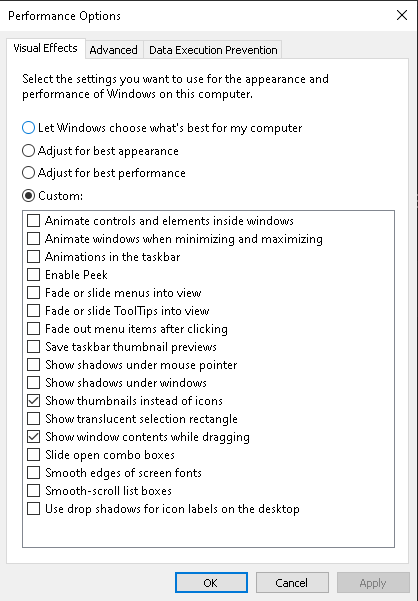
1) Adjust appearance
-Press Windows, type: "Adjust the Appearance and performance of WIndows"
-A long box will appear, choose performance (unticks all)
2) Analyze your PC's Task Manager
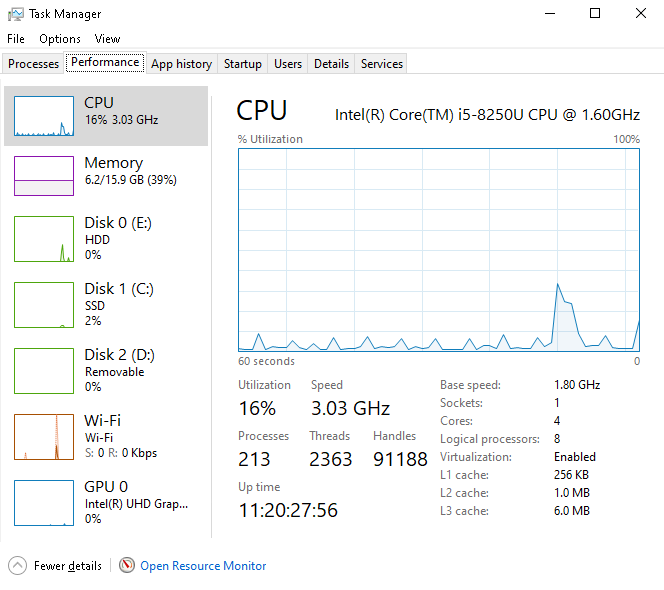
-Press Ctrl + Shift + Esc
-Choose Performance and see the %, if they are high means something is consuming your PC performance
Fun Fact: Generally, a fast PC will have high number of these (more # means it factors heavier on performance)
####Cores - Your physical PC worker that processed everything you're seeing (and also what happens backstage)
###Logical Processors (Threads) - Your virtual pc workers, almost like Cores but not as powerful as them
####Base Speed - MINIMUM guaranteed speed of your CPU (in GHz), if its higher a bit, its normal
#Sockets - physical CPUs are installed on your motherboard (usually 1)
3) Use Command Prompt (CMD)
*This scans your entire PC, if system damaged it can help repair
sfc /scannow
*Turn off hibernation mode
powercfg -h off
4) Restart your PC (Using Shut Down will not do these)
-Clears RAM (memory) that’s been filled up
-Stops background processes that may be stuck or leaking memory
-Resets system services and drivers
-Applies updates that may improve performance
*This is temporary solution if your PC's slowness is caused by other factors
5) Clear up your Local Disc's Space
-Best to leave at least 15GB of available space
6) Use Registry Editor (Regedit)
*Make sure to create backup for your Regedit in case you messed up.
These are the regedits you need to look for to boost your PC (for gaming especially online)...
*If you don't have the path, then ignore
HKEY_LOCAL_MACHINE\SOFTWARE\Microsoft\Windows\CurrentVersion\DriverSearching
SearchOrderConfig set to 0

Computer\HKEY_LOCAL_MACHINE\SYSTEM\CurrentControlSet\Control\Session Manager\Power
HyperbootEnabled set 0

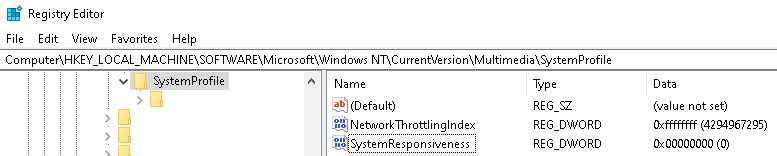
Computer\HKEY_LOCAL_MACHINE\SOFTWARE\Microsoft\Windows NT\CurrentVersion\Multimedia\SystemProfile
NetworkThrottling set to ffffffff (Disables throttling completely, making Downloads / Online Gaming to be faster a bit, may cost some CPU usage)
SystemResponsiveness set to 0 (Reduces background task priority, controls CPU allocation between background and foreground tasks)
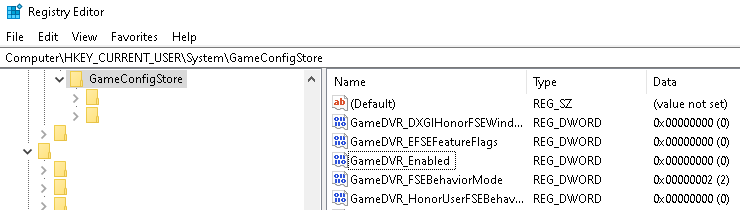
Computer\HKEY_CURRENT_USER\System\GameConfigStore
*This is for Gamebar (Windows + G), turning it off means fewer background processes
GameDVR_FSEBehaviouMode set to 2 and the rest of GameDVR to 0
-GameDVR_Enabled 0 = Off, 1 = On
-GameDVR_FSEBehaviorMode (Full Screen Exclusive) 0 = Default, 2 = Forces DVR-related optimizations / compatibility
-GameDVR_HonorUserFSEBehaviorMode 1 = Use your chosen FSE behavior,
0 = Ignore it
-GameDVR_DXGIHonorFSEWindowsCompatible (Affects how DVR interacts with DirectX fullscreen optimizations)
-GameDVR_EFSEFeatureFlag (Internal flags for Enhanced Fullscreen Exclusive behavior)
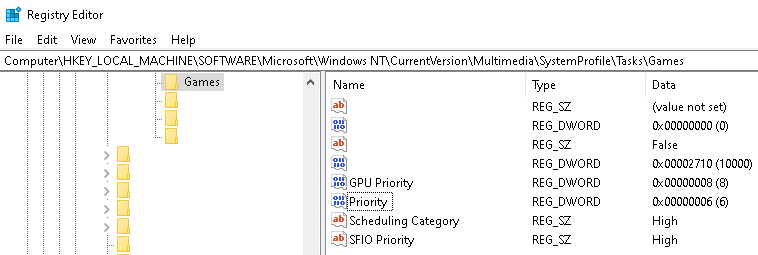
Computer\HKEY_LOCAL_MACHINE\SOFTWARE\Microsoft\Windows NT\CurrentVersion\Multimedia\SystemProfile\Tasks\Games
GPU Priority set 8
-Range: typically 0–31, higher value = more GPU priority for games but may be override by GPU driver
Priority set 6
-Range: 1–8, it sets the CPU thread priority level for the game taskbut too high can starve background processes
Scheduling Category to High
-Determines how aggressively MMCSS schedules the task, usually is set to high by default
SFIO Priority to High
-(Superfetch I/O priority), Values: Low, Normal, High (Default: High)
- What it does: Controls priority of disk I/O for the game