Registry Editor (regedit) is one of the database where your pc's behaviours referred to. Some of the GUI options provided to you are stored here.
*Before editing, do backup your entire regedit. Because a mistake in modifying thing you shouldn't would cost the PC to unable to start.
1) Enable insecure download by default (for Chrome)
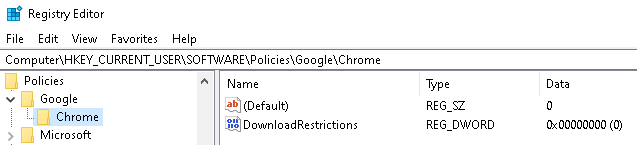
Go to this path (if you don't have, create them by Add Key at the folder)
Computer\HKEY_CURRENT_USER\SOFTWARE\Policies\Google\Chrome
In Chrome, make a new DWORD and name it DownloadRestrictions
*Must be exact case and word
Double Click it and value can be edited.
0 means download all
1 means block dangerous file
2 means block suspicious file
2) Disable lock key screen
This can disable the feature where you need to click something just for the screen to pop out the password.
TLDR: Go to password screen directly when open PC
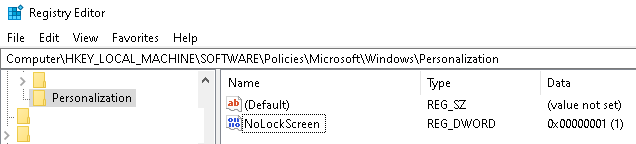
HKEY_LOCAL_MACHINE\SOFTWARE\Policies\Microsoft\Windows\Personalization
*If don't have, retreat till ...\Windows path and create the folder
Then Create new Key with DWORD 32-bit, inside name is NoLockScreen > set value to 1 as True Boolean
3) Turn Off Fast Startup / Hiperboot
Some dual-boot setups, external drives, or certain BIOS/UEFI operations may require disabling Hiberboot to function properly.
*Note: Disabling it will cause PC to slightly slower to finish startup each time you shutdown
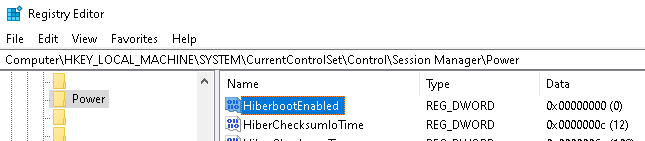
Computer\HKEY_LOCAL_MACHINE\SYSTEM\CurrentControlSet\Control\Session Manager\Power
Look for HiperbootEnabled
Set it to 0 (means don't enable)
4) Disable Animations for a Slight Speed Boost
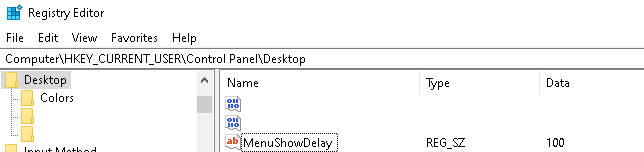
HKEY_CURRENT_USER\Control Panel\Desktop
find and set Change MenuShowDelay value to 0~100 (millisecond)
5) Remove Low Disk Warning
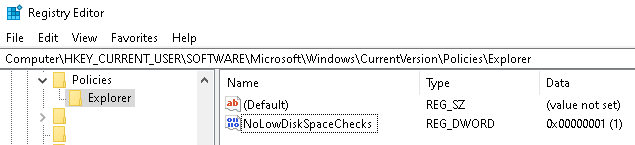
HKEY_CURRENT_USER\Software\Microsoft\Windows\CurrentVersion\Policies\Explorer
NoLowDiskSpaceChecks set 1 to disable
6) Disable Cortana
HKEY_LOCAL_MACHINE\SOFTWARE\Policies\Microsoft\Windows\Windows Search
Find AllowCortana and set to 0
*Older PC with no Cortana will not have this b default
7) Bring back Windows 10's R Click Menu
HKEY_CURRENT_USER\Software\Classes\CLSID
Create new key in that folder with the word below:
{86ca1aa0-34aa-4e8b-a509-50c905bae2a2}
In the created key {86ca1aa0-34aa-4e8b-a509-50c905bae2a2}
Create ANOTHER key again ( (leave the Default as it is):
InprocServer32

8) Add new option in Explorer's Right Click Menu
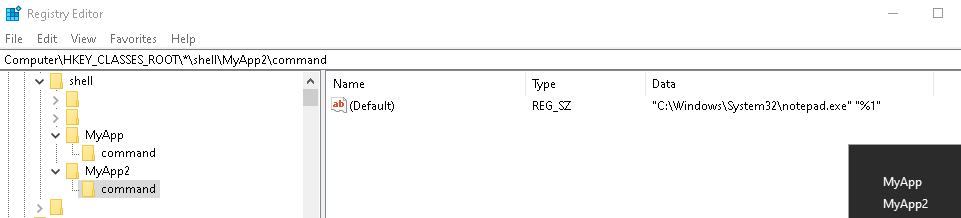
HKEY_CLASSES_ROOT\*\shell
Right click shell and create a new key
Let's say MyApp (You can change this to any name you want)
In MyApp, create a key named command
In the command, click (Default) and put this (replace with your app path):
"C:\Windows\System32\notepad.exe" "%1"
*You can create more by adding more key into the shell
Bonus: Put this into (Default) to create a menu that can copy a file as full filepath including the the selected file.
cmd /c echo %1 | clip